8 Level-1 Initial Channel Analysis
🟢 Beginner
The purpose of this SOP is to demonstrate the workflow of fluvial geomorphology (fluvgeo) rapid watershed assessment in ArcGIS Pro. This approach uses a suite of planning analysis tools to rapidly assess and identify sediment sources, pathways, and sinks for watershed analysis. Level 1 is to extract basic channel dimensions. This stage develops terrain, defines the stream reach, creates cross sections and identifies features along the reach. The output is a report of the dimensions for each cross section on a reach.
Application and Data Setup
🔧 Practical
Applications
- ArcGIS Pro mapping application with adequate system privileges ArcGIS Pro w/Admin Privileges to install and update toolsets.
- R, Rstudio and Rtools to run the Fluvgeo tools in ArcGIS Pro.
- LAStools Production toolbox from RapidLasso.
Retreive the FluvGeo Toolbox from GITHUB
- Get the latest version of the toolbox from this page under Releases. ArcGIS Toolbox
- Place the install in a location that all required applications can access.
- In ArcCatalog open the Fluvgeo toolbox and under install click Install R Package box and Hit run.
For more detailed installation information refer to FluvialGeomorph Tech Manual
Data access in ArcGIS Pro
- Fluvgeo toolbox requires the use of a mapped drive for accessing the data in ArcGIS Pro. UNC connection will create errors with some of the Fluvgeo tools.
- Work on project on the local drive and when completed move to final location. Local processing in ArcGIS Pro is preferred.
Data
- An existing stream site location, desired distance and area for stream buffer. Lidar data is also needed for 2 different years.
- An example would be projects for Illinois_SSRP_Sites_2004_2016 use a standard 1-mile length up and down stream of the site and 100-foot buffer around the 1-mile stream length.
- These values can be set to any desired length and area for each site. The analysis tools require a length of stream and a buffered area of elevation data to complete the analysis.
Gather data – A few Lidar data retrieval samples
Data will need to be gathered from the most appropriate source for each reach location. The hydrologist requesting the analysis would know potential sources. Make sure you gather data well beyond the site.
The lidar data will need to cover the entire floodplain. Ideally gather data to the upward slope on the outer edge of the floodplain. More is better than less. The boundary of the study area should have additional data beyond both ends of the channel.
- NOAA Digital Coast Lidar Viewer
- USGS National Map
- USGS Lidar Explorer
- Open Topography
- Various state and university sites, county and local governments, and project specific Lidar collection are other possible sources for data.
Convert Laz to Las (if needed)
- Add
🧰 LAStools toolboxto ArcGISPro. Open the🧰 LAStools toolboxand select🛠️ las2lasPro(transform) tool. - Drag the folder with the Laz files into the Input folder.
- Change the output format to Las. Click Run.
⚠️ Caution
Transform LAS file projections
All datasets need to be in the same projection for the entire Study Area.
- Open LAStools
🛠️ las2lasPro(transform) tool - Add the folder for the files that need to be reprojected to the input folder.
- Chosen projection for transform. Projections must be in feet or meters.
Chose a location to create file storage structure for data.
- In a folder create a file GDB and a folder labeled LPC. Use the year as the naming convention. Ex. 2025. This is where the LAS Lidar files will go.
- Create a feature dataset for each GDB. The projection used should be the same as the LAS files for each year. Use site, number, and year for naming convention. Ex. SiteName_120_2025.
Analysis Workflow
🔧 Practical
Create a Boundary
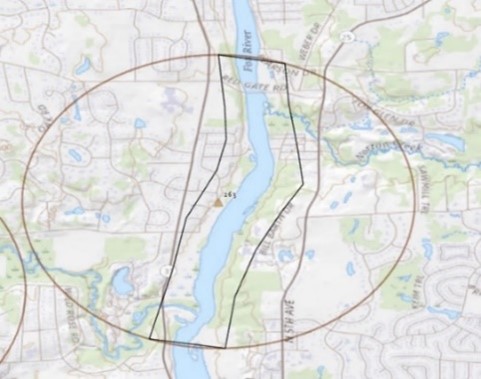
- Right click on the feature dataset and click new Feature Class.
- Name is boundary and keep feature class type as polygon.
- Click Finish.
- Change symbology to black outline.
- Zoom to your site and create a polygon that surrounds the water system by roughly 100 feet. The distance should be taken from along the entire edge of the stream to account for available elevation data for later analysis.
Create a LAS Dataset
- In the geoprocessing tab search
🛠️ Create LAS Datasettool. - In the Input Files select the Folder where the LAS tiles were downloaded to.
- In the Output LAS Dataset browse to the
📁 LPC folderwhere the two sets of LAS tiles are saved. Name it after the year. - Under
📊 Surface Constraintsthe input feature is🗺️ Boundary. - Right click on of the LAS files for the site and go to properties then coordinate system. Copy and paste the coordinate system into the geoprocessing tool.
- Click run.
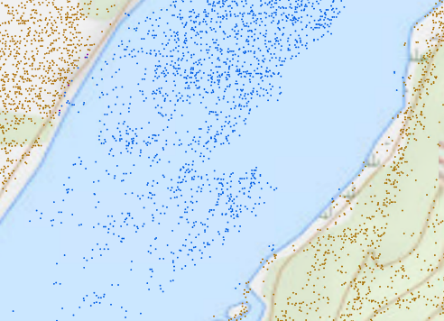
- Once tool is finished running, Right click the dataset in the contents pane and select
📊 Properties. Under properties click🧮 LAS Filter. - Under
📊 Classification Codes, make sure only🧮 ground, 🧮 water, and 🧮 railare checked. Uncheck all other boxes. Hit Ok. - Zoom to the site area to the extent of 1:2000. Make sure you see the classified dots labeled water and ground.
Turn LAS Dataset to Raster
- In the geoprocessing tab search
🛠️ LAS Dataset to Rastertool. - The
📊 Input LAS Datasetwill be the one you created in the prior step. Make sure to use the dropdown arrow to select your LAS dataset. Do not drag it from the catalog pane. This will select the LAS dataset with the symbology changes you made prior. - The Output Raster location will be the geodatabase you created under the
📁 SSRP_Sites folder. Name it DEM_Year. Ex. DEM_2022 - Value field is
🧮 Elevation. - For
📊 InterpolationType select🧮Binning. 📊 Cell Assignmentis🧮 IDW.📊 Void Fill Methodis🧮 Natural Neighbor.📊 Output Data Typeis🧮 Floating Point.- For coordinate system in state plane feet:
📊 Sampling Typeis🧮 Cell Size. Change📊 Sampling Valueto🧮 1and📊 Z Factorto🧮 1. - Click Run.
Change Symbology of Raster
- Click on your created raster symbology.
📊 Primary symbologyshould be🧮 stretch.- Change the
📊 color schemeto🧮Elevation #1. 📊 Stretch typeto🧮 Standard Deviation.📊 Statisticsto🧮 DRA.
Check Raster Pixel Size and columns and rows
- Zoom into layer at the extent of 1:15.
- Use the
🛠️ measure toolto measure the length of pixel. Should be🧮 1 ft.- Make sure the measuring tool is set to feet or imperial.
- Open properties and check that the columns have not been inflated to into the millions.
- If there are number of columns in the millions re-run the Las to Raster and set the processing extent to boundary as well and then run again.
Create Cutlines Line Feature Class
- Right click your geodatabase and click new feature dataset.
- Keep Output Geodatabase
- For the features line feature class
📊 Name, name is🧮Site#_EVENT. Ex. Site263_2008. - Use the dropdown box under coordinate system and select the corresponding LAS dataset to select the correct coordinate system.
- Click Run.
- Right click the newly created feature dataset and create new feature class.
- Name it
🗺️ cutlinesfeature class, Change feature📊 class typeto🧮 line, and finish. - Identify Flow Blockages
- Go to the edit ribbon and select
🛠️ create featureand select cutlines - Zoom to the start of the water system and change the extent to around 1:1000.
- Follow along the water system and look for roads or major crossings that cut off the water system. Draw a line from one end of the waterway to the other side that is cut off. Below are a few examples.
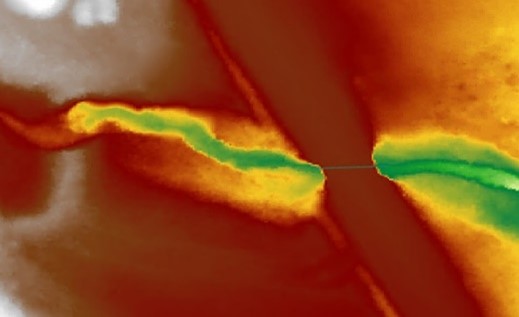
Cutline example 1 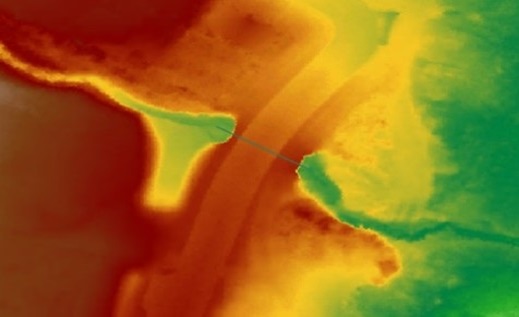
Cutline example 2 - Go to the edit ribbon and select
- If there are no blockages create a cutline at each end of the stream.
- When done, make sure to save edits before doing the next step.
Hydro Modify DEM
- In the catalog pane, go to the
FluvialGeomorph toolbox. Expand tools and select🛠️ Hydro DEMtool. - For output_workspace, drag your geodatabase from the catalog pane (Created prior) into the space.
- For
📊 cutlines, drag your🗺️ cutlinefeature classes into the space. - For
📊 dem, drag your🗺️ hydro_DEMraster dataset into the space. - For
📊 widen_cellsput🧮 4. - Click Run.
- The result is a DEM without the flow blockages and representing proper water flow across the study area.
Derive Stream as Line Tool – Esri Spatial Analyst Toolbox
- Open
🛠️ Derive Stream as Linetool - Select the
🗺️ dem_hydroraster as the input surface raster
- Set the
📊 output polylineas🧮 streamin the feature dataset.
- Hit Run. Then repeat for the earlier geodatabase.
- Change color of streamlines to a bright color to see it better against the dem.
- Delete all tributaries or lines that are not the main low point flowline. Use split and edit vertices tools. Connect all lines together using the create feature tool.
- Make sure the streamline is going through the lowest part of the channel
- Save edits.
The derive stream as line tool could produce disconnected stream lines that need to be snapped together after all lies outside the mainstem are removed.
Smooth Line Tool – Esri Cartography Toolbox
- Open
🛠️ Smooth Linetool - Set
📊 smoothingbetween🧮 2 and 15depending on the size and flow of the channel. - Check that flowline remains in the channel. Edit flowline or rerun smooth as needed to keep line in channel.
The line can be smoothed as much as desired as long as the line remains in the channel. Having the line to detailed makes extraneous flowline points.
Create Flowline
- In the FluvialGeomorph toolbox, select the
🛠️ Flowlinetool. - For the feature_dataset and stream_network drag and drop the corresponding data from the catalog.
- For
📊 smooth_toleranceput🧮 2. It can range from 2-5 based on the range of distribution of the flowline. The goal is to produce a smooth flowline without removing too much resolution from the line. - Hit Run Note: Make sure to do most recent data first. Rerun tool for older set of data once done.
- The output is a line feature class called
🗺️ flowlinefeature class. This tool derives the site flowline and smooths the stream_network geometry and converts the flowline into a route. - Ensure that the flowline remains in the channel and is not simplified into the floodplain. If this occurs, rerun reducing the degree of smoothing.
- Also ensure that the red endpoint (vertice) is at the upstream end of the flowline. The end points for each survey must also be snapped together so the calibrations done in the flowline points works correctly. It is critical that the flowline is digitized in the upstream direction and that all survey event are snapped. If this step is not performed, all subsequent tools will malfunction.
- Open attribute table for each flowline and stream network.
- The
📊 Reach Namemust be the same for each🗺️ flowlineand🗺️ stream networkfeature classes. The name is the Site# and survey event. Ex. Site 264 KANE-DUPAGE County SWCD - Check that the flowline is in and near the center of the main channel represented in the hydro_dem.
Create Flowline Points
- In the FluvialGeomorph toolbox, select the
🛠️ Flowlinepointstool. - For this tool make sure you do the most recent data first. Find the corresponding data for flowline in the feature dataset.
- The dem will be the
🗺️ dem_hydroraster. 📊 Km_to_mouthwill be🧮 0in most circumstances.- For
📊 station_distanceput🧮 1. This means there will be a station point for every foot along the flowline. - The
📊 calibration points,📊 point id field, and📊 measure fieldwill be blank for the most recent data.
- Leave the
📊 search radiusdefault. - Hit run.
- Note: Before you run the
🛠️ flowline_pointstool for the older dataset, make sure the newer🛠️ Flowlinepointstool is done running. - For the older dataset, fill in the information like when running the tool for the newer data.
- For calibration points, drag the
🗺️ flowline_pointsfeature class created from the newer data.
If the flowline end nodes are not snapped it could cause the layer to be empty.
- The point
📊 id fieldis🧮 ReachName. 📊 Measure fieldis🧮 POINT_M- Hit run.
- The result converts the flowline into a series of points along the reach. The tool converts the
🗺️ flowlinefeature class into a route, calculates the distance to the mouth of the river for all vertices, and creates a🗺️ flowline_pointsfeature class.
Create Features
- Right-click on the feature dataset and click
🛠️ Create Feature Classtool and select point for the geometry type and place in either year feature dataset. - Add fields for
📊 Name🧮 (text)and📊 kmto_mouth🧮 (double). - Drag the
🗺️ featurespoint feature class into the map. Move it to first in drawing order. - Turn off all layers except the flowline points, so you can see the basemap.
- On the ribbon, click edit and
🛠️ Create Featurestool. - You will create feature at the site # and any other major features on the basemap that the flowline points cross, likes a road, waterway with name, or lake. First, use the explore tool to click on a flowline point. Create the feature on top of the flowline point you selected.
- Serve as reference on the profile graph in the report.
- In the table find the number next to “Measure”. Take note of this number, you will add it to the table once you create the feature.
- Open attribute table for
🗺️ featurespoint feature class. Under km_to_mouth put the number that was correlated with “Measure”. - The name in most cases will just be the name of the street or waterway. For the Site# feature, the name will be Site# and the SSRP_Type found in the attribute table of Illinois_SSRPSites_2004_2016. Ex. Site 264.
Reuse the feature layer in future sites
- Right click on the
🗺️ featurespoint feature class for most recent data. Go to import and select Feature Class(es). - For the input features, go to a previous county folder and expand the feature dataset for the most recent geodatabase under any Site# and import that database layer called
🗺️ featurespoint feature class. - For the output geodatabase, choose the corresponding feature dataset. This allows the use of a layer with existing fields.
REM
- In the FluvialGeomorph toolbox, select the
🛠️ REMtool. - Fill in the parameters with the corresponding data. Make sure for dem you choose the
🗺️ hydro_demraster. 📊 Buffer distancewill be🧮 1500.- Hit run. Note: You will not be able to create features and run this tool at the same time.
- The purpose of this step is to produce a REM. This DEM normalizes stream bank elevations for a specific reach.
- Select the symbology for the REM.
- Change the
📊 rendererfrom Stretch to the🧮 Classify. - Change
📊 number of classesto🧮 two. - In the
📊 first class, change the upper value to🧮 100and note how the REM changes.- Add onto by this upper value until the dem fills the bank and right before it starts ‘overflowing’ into the floodplain, which is 2 times the depth of the channel.
- Get an elevation at the bank and then the center of the channel and add the difference to the 100 first class value.
Find the Channel and Floodplain
- Have the
🗺️ flowlinefeature class,🗺️ demhydroraster and🗺️ REMraster for the newer year. - Find the elevation in the
🗺️ REMraster for the bank and the🗺️ flowlinefeature class. Check multiple locations along the stream, including the site location. - Find the average difference in elevation between the bank and the flowline.
- Subtract the two REM values to get the bankfull depth for the channel. Ex. bank elevation 104 and flowline elevation 100 then the channel depth is 104. This value is used in the
🛠️ Water Surface Extenttool as the📊 REM_value. This will become the channel bank_raw value. - Next Multiply the last number of the channel bank_raw value by 2 and use it as the
📊 REM_valuefor the🗺️ floodplain bank_rawfeature class. Ex. channel bank_raw 104 make the floodplain bank_raw 108.
Create Water Surface Extent
- In the FluvialGeomorph toolbox, select the
🛠️ Water Surface Extenttool. - Fill in the
🗺️ featurespoint feature class and the🗺️ REMraster for from the most recent year. - Enter the depth value found for the channel
- Set
📊 smoothingto🧮 5. - Hit Run
- Run again for the floodplain depth.
Edit the Channel and Floodplain Banks_raw layers
- Open the attribute table for the
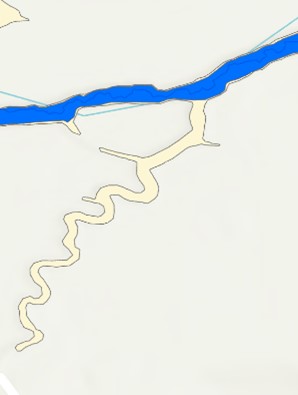
🗺️ channelbanks_rawfeature class. Sort the Shape_Area column descending. - Use the gridcode column value of 1 to find the highest row(s) that make up the stream channel around the flowline. With the channel polygons selected switch the selection and delete all other polygons leaving only the stream channel.
- The
🗺️ channelbanks_rawfeature class need to be trimmed of any incoming confluences. Then save the edits. - Repeat Create
🛠️ Water Surface Extenttool for the🗺️ floodplainbanks_rawfeature class. Leave an additional area or confluences.
Create Cross Sections(XS) (only for newest dataset)
- In the FluvialGeomorph toolbox, select the
🛠️ XS Layouttool. - Fill in the
🗺️ featurespoint feature class and🗺️ flowlinefeature class from the most recent geodatabase. - For
📊 split typekeep as🧮 split at approximate distance.` 📊 Transect spacingis🧮 300.📊 Transect_widthis determined by width of floodplain from the flowline. Find the distance of the farthest point of the floodplain from the flowline📊 Transect_width_unit🧮 defaultis used.- Hit Run.
- The result is a line feature class of regularly spaced cross sections that well represent the channel conditions found in this reach.
- Make sure none of the lines are hanging outside the raster area.
- Select each cross section and make sure green box is on left side of the bank going downstream. Start at upstream going downstream. Make sure the XS’s lines are parallel to bank. Edit each cross section so that they are perpendicular to the flow of the stream. Adjust their location if they are too close to highways or other smaller streams. The purpose is to get a cross section that extend the full width of the floodplain.
- If cross sections cannot be moved without overlapping, they can be deleted. This may occur with tight bends or some meandering of the stream.
XS Resequence (only for the newest dataset)
- Run
🛠️ Resequenceonly if any cross sections were deleted in the adjustment process.
Calculate XS Watershed Area (only for newest dataset)
- In the fluvialgeomorph folder, expand layers and add a clip of the needed county from the NHDPlusFac_National.tif. This dataset can be found at EPA
Having countywide 🗺️ NHD raster layer improves processing time if there is more than one site in a county.
- Right click the layer, go to data, then export raster
- Add the output to whatever year folder.
- Clipping geometry is displaying current extent. Make sure you are zoomed out to the whole county, so each site is located within extent.
- Optional: Create a clip for each project site of the
🗺️ NHDPlusFac_National.tifraster with the extent zoomed out 1:50000 centered on the site.
- Optional: Create a clip for each project site of the
- Go to FluvialGeomorph toolbox. Add
🛠️ Wastershed Areatool. 📊 Snap distanceis🧮 100.- Start with the more recent data first.
- Hit Run.
- If it doesn’t work zoom into the mile radius of site and clip FAC. Having a smaller clip will also reduce the tool runtime.
- The result is a new attribute field in the
🗺️ XSline feature class that has a calculated watershed area for each regularly spaced cross section.
- Once it is done running, open attribute table and see if anything in the watershedareaSqMile is off.
- Some of the
🗺️ XSline feature class📊 Watershed_Area_SqMilemay not follow the trend. If this is the case, manually enter in the values to fill in the gaps. If most of the XS’s are missing these or display incorrect values, rerun🛠️ Watershed Areatool and increase the📊 snap distance. - Check for other streams and bodies of water feeding into the stream that would validate the abrupt changes in the watershed area.
- Some of the
- Import the finished
🗺️ XS_300_100line feature classto the earlier year feature dataset.
XS River Position
- In the FluvialGeomorph toolbox, select
🛠️ XS River Position. - Enter
🗺️ featurespoint feature class from more recent geodatabase. - Input
🗺️ XSline feature class. - Input
🗺️ flowlinepointsfeature class. - Hit Run.
- The result adds new fields in the attribute table of the
🗺️ XSline feature class. - Two temporary charts will populate the Contents tab under the
🗺️ XSline feature Cclass (🧮 XS Seqby📊 km_to_mouth,🧮 XS Seqby📊 Watershed Area sq mile). If the charts are removed from the contents pane, you will need to run the🛠️ XS River Positiontool to view them again.- Open both Charts and inspect for any issues in the data.
- Note: This step provides charts which help see if there are gaps in the data.
- Repeat
🛠️ XS River Positiontool for the older gdb.
XS Points
- In the FluvialGeomorph toolbox, select
🛠️ XSpoints. - Enter feature dataset for more recent geodatabase.
- Input
🗺️ XSline feature class. - Input
🗺️ dem_hydroraster. - Change
📊 dem_unitsto🧮 ft. - Input
🗺️ REMraster for the📊 REM_dem. 📊 Station Distanceis🧮 1.- Hit Run.
- Points have been created every foot along the XS’s with an Elevation. This will provide a visual elevation profile for each XS.
- Repeat these steps for the older gdb.
XS Point Classify
- In the FluvialGeomorph toolbox, select
🛠️ XS Points Classify. - Enter feature dataset for the most recent year.
- Input
🗺️ XSpointsfeature class. - Input
🗺️ channelpolygon feature class. - Input
🗺️ floodplainpolygon feature class. - Leave
📊 buffer distanceas🧮 default. - Repeat for earlier year XS Points.
Run Report
🔧 Practical
XS Dimensions Level 1
- In the FluvialGeomorph toolbox, open
🛠️ XS Dimensions, Level 1. 🗺️ XSline feature class are added into📊 xs_line fc.- Enter
🧮 4for the📊 lead_n.- This sets the moving window to average 4 XS’s above and below the XS being calculated.
- Leave the
📊 use_smoothingbox🧮 uncheckedand📊 loess_spanas🧮 0.1. - Check that the vert_units are in ft.
- After the tool completes, refresh the folder the gdb is in and you should find a .csv file in there.
Join from CSV (Data Management toolbox)
- In the FluvialGeomorph toolbox, open
🛠️ Join From CSVtool located in the🧰 Data Managementtoolset. - Feature_dataset will be the
🗺️ featurespoint feature class of the most recent gdb. - Fc will be the
🗺️ XSline feature class. - Choose
🧮 Seqin the dropdown for the📊 fc_field. - The
📊 csv_filewill be the🧮 .csvfile created from the🛠️ XS Dimensions, Level 1Tool. 📊 Csv_fieldwill match the📊 fc_fieldso it should also be🧮 Seq.- Hit Run.
- A new line feature class ending with dims_L1 will be added to the feature dataset.
Generate Level 1 Report
- In the FluvialGeomorph toolbox, open the
🛠️ Report – L1tool located in the🧰 Reportstoolset. 📊 Streamwill be the🧮 ReachNamewhich was created when making the flowline. Copy and paste the ReachName from XS’s attribute table.📊 flowline_fcwill be the🗺️ flowlinefeature class from the recent year.📊 XS_dimensions_fcwill be the line feature class created during the🛠️ Join From CSVtool.📊 flowline_points_1will be the🗺️ flowlinepointsfeature classfrom the most recent year.📊 flowline_points_2will be the🗺️ flowlinepointsfeature class from the older year.
📊 XS_points_1will be the🗺️ XSpointspoint feature class created from the XS Points tool. Use the data from the most recent year.📊 XS_points_2will be the🗺️ XSpointsfeature class for the older year.
📊 Survey_name_1will be the year of the most recent data (ex: 2022).📊 Survey_name_2will be the year of the older data (ex: 2012).
📊 Features_fcwill need the🗺️ featurespoint feature class that was created to indicate roadways, site improvements, or other bodies of water.📊 Channel_fcwill be the lower number bank_raw layer that represents the channel.📊 Floodplain_fcwill be the higher number bank_raw layer that represents the floodplain,📊 Demwill need the🗺️ dem_hydroraster.- Check the box for: show_xs_map.
- Change profile_units to feet.
- Check boxes for aerial and elevation.
📊 XS_label_freqand📊 exaggerationshould already be set to🧮 10and🧮 1.2, respectively.📊 Output_diris where the report will be stored. Each project has a Reports folder.📊 Output_formatis🧮.word_document.- Hit Run.
- Review report for errors and anomalies in the data.
Next Steps
☑️ Evaluate
Review the report.
- Go to chapter Level 1 Report under Report Reviews.
- Refer to the FG Technical Manual as need for more detailed information.
- Revise and/or rerun as needed.