10 Level-2 Bankfull Analysis
🟡 Intermediate
The purpose of this SOP is to demonstrate the workflow of fluvial geomorphology (fluvgeo) rapid watershed assessment in ArcGIS Pro. This approach uses a suite of planning analysis tools to rapidly assess and identify sediment sources, pathways, and sinks for watershed analysis. Level 2 Estimate Bankfull is to estimate the REMed bankfull elevation for the base year for each reach. This is accomplished by identifying and mapping riffle cross sections and roughly estimate an initial bankfull elevation for the base year for each reach. The data from level 1 will be needed to start this estimate bankfull process.
Application and Data Setup
🔧 Practical
Level-1 Data
- Sites must have had a Level-1 analysis run. That data is essential to completing Level_2 analysis.
- Level-1 software application and tools will be needed for Level-2 analysis.
Data access in ArcGIS Pro
🧰 Fluvgeo toolboxrequires the use of a mapped drive for accessing the data in ArcGIS Pro. UNC connection will create errors with some of the Fluvgeo tools.- Create a mapped drive and use that connection in ArcCatalog.
Analysis Workflow
🔧 Practical
Create Riffle Cross Section Layers– for Channel
- Copy the
🗺️ XSline feature class in the most recent database and rename one🗺️ XS_Layout_riffles_chfeature class (Ex. xs_300_150_riffels_ch).
Select the XS_section that represent best represent rock riffle areas in the reach.
- Select between 3 and 6 riffle location based on the length and characteristics of the reach.
- Riffle Identifying Characteristics:
- A straight reach between two meander bends, areas in the cross-overs between river bends
- Clear indicators of the active floodplain or bankfull discharge
- Presence of one or more terraces
- Channel section and form typical of the stream
- A reasonably clear view of of geomorphic features
- Areas of high water surface slope (in the case of high gradient streams)
- Areas of minimum depth and width
- Channel width parallel and consistent
- Avoid tributary influences
- Cross sections should be drawn wide enough to capture the top of bank
- Points in the LAS dataset can assist in locating riffles if the stream. Use symbolized LAS point layer to identify dense clusters ground points in the reach.
- Imagery can also be used to identify potential riffle areas in the reach.
- Once XS_section have been identified delete all other XS sections that are not determined to be riffles.
XS Resequence the riffle XS_sections
- In the catalog pane, go to the
🧰 FluvialGeomorph toolbox. Expand tools and select🛠️ XS Resequence. - Feature_dataset for the most recent year.
- Xs_fc for the
🗺️ XS_Layout_riffles_chfeature class.
Resize the XS_Layout_riffles_ch
- The riffle cross sections need to snapped perpendicular to the channel polygon at the current riffle location.
- Save Edits
Create Floodplain riffle layer
- Copy the
🗺️ XS_Layout_riffles_chline feature class to the current year feature dataset and rename it🗺️ XS_Layout_riffles_fp. - Edit the
🗺️ XS_Layout_riffles_fpline feature class to the full width of the floodplain polygon. The🗺️ XS_Layout_riffles_fpline feature class must line up with the🗺️ XS_Layout_riffles_chline feature class. - Save edits.
Calculate Cross Section Watershed Area – for the channel and floodplain riffles
- In the fluvialgeomorph folder, expand layers and add
🗺️ NHDPlusFac_National.tifraster. - Right click the layer, go to data, then export raster
- Add the output to the event folder.
- Clipping geometry is displaying current extent. Make sure you are zoomed out to the whole county, so each site is located within extent.
- Optional: Create a clip for each project site of the
🗺️ NHDPlusFac_National.tifraster with the extent zoomed out 1:50000 centered on the site.
- Optional: Create a clip for each project site of the
- Go to FluvialGeomorph toolbox open
🛠️ XS Water Area tool. 📊 Snap distanceis🧮 100.- Start with the more recent data first.
- Hit Run.
- If it doesn’t work zoom into the mile radius of site and clip FAC. Having a smaller clip will also reduce the tool runtime.
- The result is a new attribute field in the
🗺️ XSline feature class that has a calculated watershed area for each regularly spaced cross section.
- Once it is done running, open attribute table and see if anything in the
📊 watershedareaSqMileis off.- Some of the cross sections
📊 Watershed_Area_SqMilemay not follow the trend. If this is the case, manually enter in the values to fill in the gaps. If most of the cross sections are missing these or display incorrect values, rerun🛠️ Watershed Area Tooland increase the📊 snap distance. - Check for other streams and bodies of water feeding into the stream that would validate the abrupt changes in the watershed area.
- Some of the cross sections
Import riffle cross sections into GDB feature dataset.
- Import the finished
🗺️ XS_Layout_riffles_chand🗺️ XS_Layout_riffles_fpfeature classes to the earlier year feature dataset.
XS River Position
- In the FluvialGeomorph toolbox, select
🛠️ XS River Position. - Enter feature dataset for more recent geodatabase.
- Input
🗺️ Riffle_XSline feature class. - Input
🗺️ Flowlinepointsfeature class. - Hit Run. Complete for both the
🗺️ channel_XSand🗺️floodplain_XSfeature classes. - The result adds new fields in the attribute table of the
🗺️ XSline feature class. - Two temporary charts will populate the Contents tab under the
🗺️ XSline feature class (XS📊 Seq by 📊 km_to_mouth, 📊 XS Seq by Watershed Area sq mile). If the charts are removed from the contents pane, you will need to run the🛠️ XS River Position Toolto view them again.- Open both Charts and inspect for any issues in the data.
- Note: This step provides charts which help see if there are gaps in the data.
- Repeat
🛠️ XS River Position Toolfor the older gdb.
XS Points
- In the FluvialGeomorph toolbox, select
🛠️ XS Points. - Enter feature dataset for more recent geodatabase.
- Input
🗺️ XSline feature class. - Input
🗺️ dem_hydroraster. - Change
📊 dem_unitsto🧮 ft. - Input
🗺️ REMraster for the📊 REM_dem. 📊 Station Distanceis🧮 1.- Hit Run. Complete for both the
🗺️ channel_XSand🗺️ floodplain_XSfeature classes. - Points have been created every foot along the Cross Section with an Elevation. This will provide a visual elevation profile for each cross section.
- Repeat these steps for the older gdb.
XS Point Classify
- In the FluvialGeomorph toolbox, select
🛠️ XS Point Classify. - Enter feature dataset for the most recent year.
- Input
🗺️ XSpointsfeature class. - Input
🗺️ channel polygonfeature class. - Input
🗺️ floodplain polygonfeature class. - Leave
📊 buffer distanceas🧮 default. - Repeat for earlier event
🗺️ XSpointsfeature class.
Run Report
🔧 Practical
XS Dimensions Level 1
- In the FluvialGeomorph toolbox, open
🛠️ XS Dimensions, Level 1. 🗺️ XSline feature class for the newest event are added into📊 xs_line fc.- Enter
🧮 4for the📊 lead_n.- This sets the moving window to average 4 XS’s above and below the XS being calculated.
- Leave the
📊 use_smoothingbox🧮 uncheckedand📊 loess_spanas🧮 0.1. - Check that the vert_units are in ft.
- After the tool completes, refresh the folder the gdb is in and you should find a .csv file in there.
Join from CSV (Data Management toolbox)
- In the FluvialGeomorph toolbox, open
🛠️ Join From CSVlocated in the🧰 Data Management toolset. 🗺️ featurespoint feature class will be the feature dataset of the most recent gdb.- Fc will be the
🗺️ XSline feature class. - Choose
🧮 Seqin the dropdown for the📊 fc_field. - The csv_file will be the .csv file created from the
🛠️ XS Dimensions Level 1 Tool. 📊 Csv_fieldwill match the📊 fc_fieldso it should also be🧮 Seq.- Hit Run.
- A new line feature class ending with dims_L1 will be added to the feature dataset.
Go to the USGS StreamStats website to get the 50-percent AEP flood value for the stream reach .
*Note - Other sources can be used to get the watershed discharge.
Check with hydrologist requesting the analysis for additional sources.*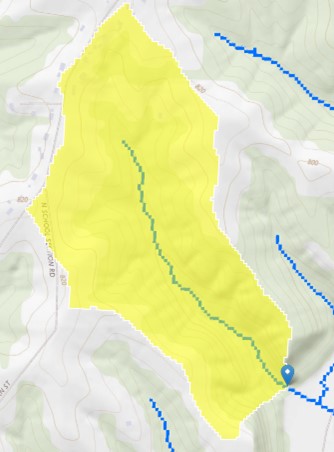
- Select the state of the reach on the left of the stream.
- Zoom into the location for the stream reach until the stream layer shows.
- Click the delineate button.
- On the map select the base of the stream reach. The watershed calculation will start. When it is complete a delineation of the reach will show.
- Click Continue.
- Select all 4 options under Regression Based Scenarios.
- Below expand Basin Characteristics and Select All Basin Characteristics.
- Click Continue. The calculations for the report will run.
- Once the calculations are completed scroll to the bottom of the left panel, check all the boxes and click Open Report.
- Add the site name to the report title. a. Ex. Site193 JODAVIESS County SWCD Stream Stats Report.
- Add any comments need to the comment section.
- Scroll to the bottom and print the report to PDF. Save to the site folder.
Open the PDF Stream Stats Report from the site folder.
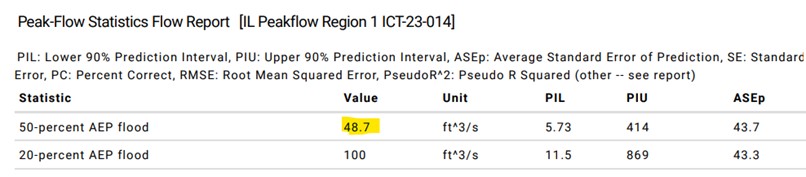
- Locate the 50-percent AEP flood value under the Peak-Flow Statistics Flow Report section around page 8 of the report. This value will be used in the Level 2 report.
L2 XS Dimensions
- In the FluvialGeomorph toolbox, open
🛠️ XS Dimensions, Level 2. 🗺️ XSdimension level 1 for the riffles into the📊 xs_line fc. Ex. xs_300_150_riffels_ch_103_5_dims_L1🗺️ XS_points_channel_rifflesare added to the📊 XS_point_fc. Ex. xs_300_150_riffels_ch_103_5.📊 Bankfull_elevationis from the📊 channel depthof the🗺️ bank_rawchannelfeature class. Ex. 103.5- Enter
🧮 4for the📊 lead_n.- This sets the moving window to average 4 XS’s above and below the XS being calculated.
- Leave the
📊 use_smoothingbox🧮 uncheckedand📊 loess_spanas🧮 0.1. Can be adjusted up to 1. - Check that the
📊 vert_unitsare in🧮 ft. 📊 Discharge methodis🧮 model_measure.📊 Discharge_valueis the🧮 50-percent AEP floodvalue from the watershed discharge report.- After the tool completes, refresh the folder the gdb is in and you should find a .csv file in there.
Join from CSV
- In the FluvialGeomorph toolbox, open
🛠️ Join From CSVlocated in the🧰 Data Management toolset. 🗺️ Featuresdataset will be the feature dataset of the most recent gdb.- Fc will be the
🗺️ XSchannelriffles _dims_L1line feature class. - Choose
🧮 Seqin the dropdown for the📊 fc_field. - The csv_file will be the
🗺️ .csvfile created from the ``XS Dimensions Level 2 Tool. 📊 Csv_fieldwill match the📊 fc_fieldso it should also be🧮 Seq.- Hit Run.
- A new line feature class ending with
🗺️ *dims_L2will be added to the feature dataset.
Generate Level L2 Estimate Bankfull Report
- In the FluvialGeomorph toolbox, open the
🛠️ Report – L2 Estimate Bankfulllocated in the🧰 Reports toolset. 📊 Streamwill be the🧮 ReachNamewhich was created when making the flowline. Copy and paste the🧮 ReachNamefrom🗺️ XSfeature class attribute table.📊 Flowline_fcwill be the🗺️ flowlinefeature class from the recent survey event.📊 Xs_dimensions_fcwill be the🗺️ XSline feature class created during the🛠️ Join From CSV tool.📊 Xs_point_ch_1will be the🗺️ flowlinepointsfeature class from the most recent survey event.📊 Xs_point_ch_2will be the🗺️ flowlinepointsfeature class from the older survey event.
📊 Xs_points_fp_1will be the🗺️ XSpointsfeature class created from the🛠️ XS Points tool. Use the data from the most recent survey event.📊 Xs_points_fp_2will be the🗺️ XSpointsfeature class for the older survey event.
📊 Survey_name_1will be the🗺️ survey eventfeature class of the most recent data (ex: 2022).📊 Survey_name_2will be the🗺️ survey eventfeature class of the older data (ex: 2012).
📊 Features_fcwill need the🗺️ featurespoint feature class that was created to indicate roadways, site improvements, or other bodies of water.📊 Channel_fcwill be the lower number🗺️ bank_raw layerfeature class that represents the channel.
📊 Floodplain_fcwill be the higher number🗺️ bank_raw layerfeature class that represents the floodplain,📊 Demwill need the🗺️ dem_hydro.- Regions will be selected based on needs for the site. They calculate an estimate of specific hydraulic dimension for a given drainage area. One to four curves can be selected for a report. Ex. IL sites normally use Southern Driftless, Lower Southern Driftless, and Eastern United States.
📊 From_elevationis the🧮 low end numberfrom a range built around the📊 channel bf_estimate number.- Ex if your bankfull estimate for the reach is 104 the range could be 100-106. Making 100 the from_elevation and 106 the to_elevation. The range should be roughly 2-5 numbers below and above the bankfull estimate.
📊 To_elevationis the🧮 high end numberfrom a range built around the📊 channel bf_estimate number.📊 By_elevationmust be a number divisible by the📊 bf_estimate. It normally ranges from 0.1-2.📊 Bf_estimatewill be the🧮 50-percent AEP floodfrom Stream Stats or other source.📊 Check the boxfor:🧮 show_xs_map.- Change
📊 profile_unitsto🧮 feet. 📊 Check boxesfor🧮 aerial and 🧮 elevation.📊 Xs_label_freqand📊 exaggerationshould already be set to🧮 10and📊 extent_factoris🧮 1.2.📊 Output_diris where the📑 reportwill be stored. Each project has a📁 Reports folder.📊 Output_formatis🧮 word_document.- Hit Run.
- Review
📑 Reportfor errors and anomalies in the data.
Next Steps
☑️ Evaluate
Review the report.
- Go to chapter Level 2 Bankfull Report under Report Reviews.
- Refer to the FG Technical Manual as need for more detailed information.
- Revise and/or rerun as needed.